
✨ 1 Week - JS Study
안녕하세요. 소시지입니다.
본 포스팅은 <2025.01.17 ~ 2025.01.31> 기간의 JS 스터디 3주차 학습 내용을 기록했습니다.</span>
🗓️ 2주차 진행 (2025.01.31)
Login
Input Values
<!DOCTYPE html>
<html lang = en>
<head>
    <meta charset="UTF-8">
    <meta http-equiv="X-UA-Compatible" content="IE=dege">
    <meta name="viewport" content="width=device-width, initial-scale=1.0">
    <link rel="stylesheet" href="style.css">
    <title>Momentum App</title>

</head>
<body>
    <div id="Login-form">
    <input type="'text" placeholder="What is your name?" />
    <button>Log In</button>
    </div>

    <script src="app.js"></script>
</body>
</html>
const loginFrom = document.getElementById("login-form");
const loginInput = loginFrom.querySelector("input");
const loginButton = loginFrom.querySelector("button");
→ LoginForm은 HTML 내에 있는 element를 의미하므로
**<div id="Login-form">
<input type="'text" placeholder="What is your name?" />
<button>Log In</button>
</div>**
이 부분을 가리킨다.
const loginInput = document.querySelector("#login-form input");
const loginButton = document.querySelector("#login-form button");
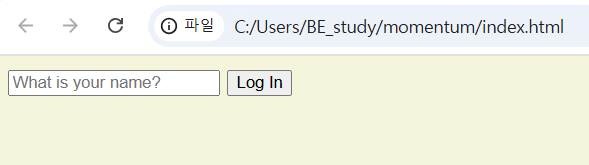
실행 결과
const loginInput = document.querySelector("#login-form input");
const loginButton = document.querySelector("#login-form button");

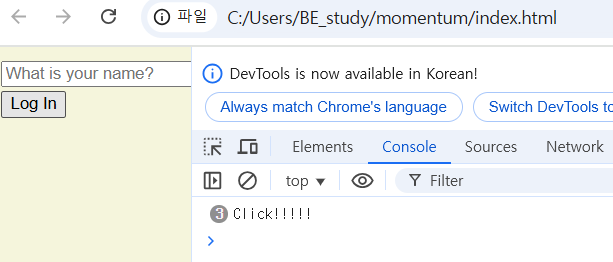
function onLoginBtnClick(){
    console.log("Click!!!!!")
}
loginButton.addEventListener("click", onLoginBtnClick);
Form Submossion
const loginInput = document.querySelector("#login-form input");
const loginButton = document.querySelector("#login-form button");

function onLoginBtnClick(){
    const value = loginInput.value;
    if (value === "") {
        console.log("Please write your name");
    }
}
loginButton.addEventListener("click", onLoginBtnClick);
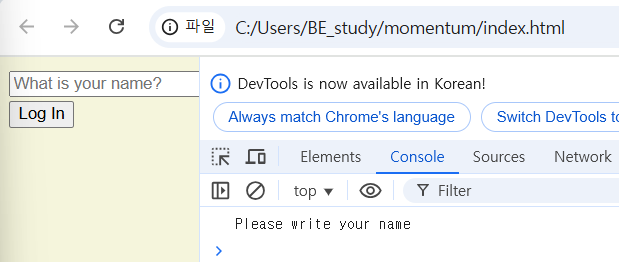
→ name을 작성하지 않고 클릭 버튼을 눌렀을 경우에는 “Please write your name”이 출력되도록 설정함.
const loginInput = document.querySelector("#login-form input");
const loginButton = document.querySelector("#login-form button");

function onLoginBtnClick(){
    const username = loginInput.value;
    if (username === "") {
        alert("Please write your name");
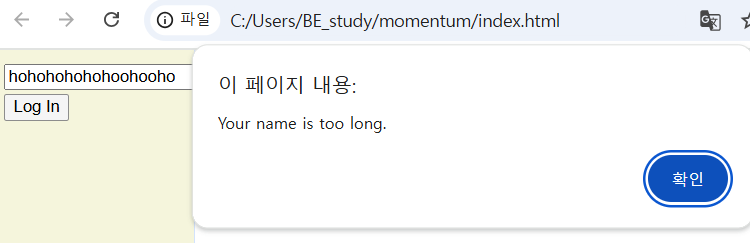
    } else if(username.length>15) {
        alert("Your name is too long.");
    }
}
loginButton.addEventListener("click", onLoginBtnClick);
Events
const loginFrom = document.querySelector("#login-form");
const loginInput = document.querySelector("#login-form input");

function onLoginsubmit(){
    const username = loginInput.value;
    console.log(username);
}

loginFrom.addEventListener("submit", onLoginSubmit);
→ EventListener를 실행할 때 ()를 추가하지 않아야 한다. ()를 추가한다는 것은 function을 ‘즉시’ 실행한다는 뜻인데, 나는 바로 실행되도록 하는 것을 원하지 않기 때문이다. addEventListener를 활용할 때는 function의 이름만 적어두고, 나중에 지정한 이벤트가 발생했을 때만 브라우저가 해당 function을 실행시킨다. Submit event가 발생하면 브라우저가 알아서 저 function을 실행시켜주도록 하자!
const loginFrom = document.querySelector("#login-form");
const loginInput = document.querySelector("#login-form input");

function onLoginSubmit(event){
    event.preventDefault();
    console.log(event);
}

loginFrom.addEventListener("submit", onLoginSubmit);
event.preventDefault(): 브라우저가 기본 동작을 실행하지 못하게 막는다.
addEventListener 안에 있는 함수는 직접 실행하지 않는다. 브라우저가 실행시켜주고 브라우저에서 해당 이벤트에 대한 정보 즉, object를 가지게 된다.
addEventListener의 함수에서 object에 대한 자리만 할당해주면 해당 이벤트가 발생시킨 정보들에 대한 object들을 볼 수 있다.
이때 해당 이벤트가 가진 기본 Default값을 발생시키지 않기 하게 위해선 preventDefault를 이용하여 막을 수 있다.
Getting Username
.hidden {
    display: none;
}
<!DOCTYPE html>
<html lang = en>
<head>
    <meta charset="UTF-8">
    <meta http-equiv="X-UA-Compatible" content="IE=dege">
    <meta name="viewport" content="width=device-width, initial-scale=1.0">
    <link rel="stylesheet" href="style.css">
    <title>Momentum App</title>

</head>
<body>
    <form id="login-form" class="hidden">
        <input required maxlength="15" type="text" placeholder="What is your name?"/>
        <input type="submit" value="Log In" />
    </form>
    <script src="app.js"></script>
</body>
</html>
→ 유저가 이름을 form을 통해 제출했을 때, 기본 동작은 막아주고 유저 이름은 const username = loginInput.value로 저장해준다.
const loginFrom = document.querySelector("#login-form");
const loginInput = document.querySelector("#login-form input");

function onLoginSubmit(event){
    event.preventDefault();
    const username = loginInput.ariaValueMax;
    loginFrom.classList.add("hidden");
}

loginFrom.addEventListener("submit", onLoginSubmit);
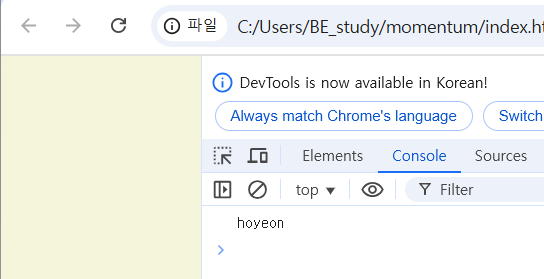
→ 실행 결과 form 제출 칸은 사라지고 내가 작성한 유저 이름만 Console에 출력된 것을 확인할 수 있다.
<!DOCTYPE html>
<html lang = en>
<head>
    <meta charset="UTF-8">
    <meta http-equiv="X-UA-Compatible" content="IE=dege">
    <meta name="viewport" content="width=device-width, initial-scale=1.0">
    <link rel="stylesheet" href="style.css">
    <title>Momentum App</title>

</head>
<body>
    <form id="login-form">
        <input required maxlength="15" type="text" placeholder="What is your name?"/>
        <input type="submit" value="Log In" />
    </form>
    <h1 id="greeting" class="hidden"></h1>

    <script src="app.js"></script>
</body>
</html>
index.html에서 <h1 id="greeting" class="hidden"></h1>를 설정하고 app.js에 아래 코드(const greeting = document.querySelector(“#greeting”);)를 추가한다.
const loginFrom = document.querySelector("#login-form");
const loginInput = document.querySelector("#login-form input");
const greeting = document.querySelector("#greeting");

const HIDDEN_CLASSNAME = "hidden";

function onLoginSubmit(event){
    event.preventDefault();
    const username = loginInput.value
    loginFrom.classList.add(HIDDEN_CLASSNAME);
    greeting.innerText = "Hello " + username;
    greeting.classList.remove(HIDDEN_CLASSNAME);
}

loginFrom.addEventListener("submit", onLoginSubmit);
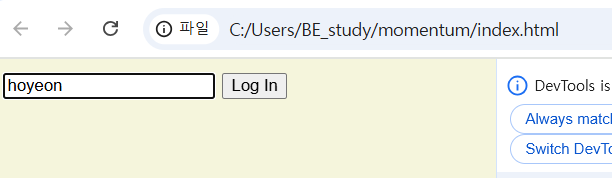
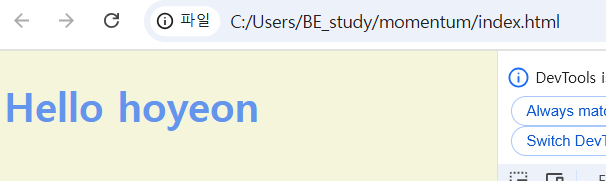
실행결과
    greeting.innerText = "Hello " + username;
    greeting.innerText = `Hello ${username}`;
→ 같은 의미의 코드 (가독성을 위해 후자의 코드를 선호함)
##
전체 코드 정리
const loginForm = document.querySelector("#login-form");
const loginInput = document.querySelector("#login-form input");
const greeting = document.querySelector("#greeting");

const HIDDEN_CLASSNAME = "hidden";
const USERNAME_KEY = "username";

function onLoginSubmit(event) {
event.preventDefault();
// step1. 화면 새로고침 방지
loginForm.classList.add(HIDDEN_CLASSNAME);
// step2. form을 다시 숨겨준다
const username = loginInput.value;
// step3. value를 username이라는 key값으로 저장시켜준다
localStorage.setItem(USERNAME_KEY, username);
// step4. username값을 username이라는 key와 함께 local storeage에 저장한다
paintGreetings(username);
// onLoginSubmit함수에서는 유저정보가 input으로부터 오고 있다
}

function paintGreetings(username) {
greeting.innerText = `Hello ${username}`;
greeting.classList.remove(HIDDEN_CLASSNAME);
}
// step5. 비어있는 h1 요소안에 `Hello username` 이라는 텍스트 추가

const savedUsername = localStorage.getItem(USERNAME_KEY);

// step6. 앱이 시작되면 local storage에서 savedusername을 얻으려고 할텐데 거기서 username이라는 key를 가지고 찾게 된다

// step7. 처음에는 key랑 value가 null이므로
if (savedUsername === null) {
loginForm.classList.remove(HIDDEN_CLASSNAME);
// form에 hidden을 지워주고
loginForm.addEventListener("submit", onLoginSubmit);
// form이 submit될때만 onLoginSubmit함수를 실행 시키도록 한다
} else {
paintGreetings(savedUsername);
// 유저정보가 localstoreage에서 나오고 있다
// paintGreeting은 only localstoarage에서만 값을 불러온다
}
Timeouts and Dates
<!DOCTYPE html>
<html lang = en>
<head>
    <meta charset="UTF-8">
    <meta http-equiv="X-UA-Compatible" content="IE=dege">
    <meta name="viewport" content="width=device-width, initial-scale=1.0">
    <link rel="stylesheet" href="style.css">
    <title>Momentum App</title>

</head>
<body>
    <form class="hidden" id="login-form">
        <input required maxlength="15" type="text" placeholder="What is your name?"/>
        <input type="submit" value="Log In" />
    </form>
    <h2 id="clock">00:00</h2>
    <h1 id="greeting" class="hidden"></h1>

    <script src="app.js"></script>
    <script src="clock.js"></script>
</body>
</html>
const clock = document.querySelector("h2#clock");

function getClock() {
    const date = new Date();
    console.log(`${date.getHours()}:${date.getMinutes()}:${date.getSeconds()}`);
}

setInterval(getClock, 1000);
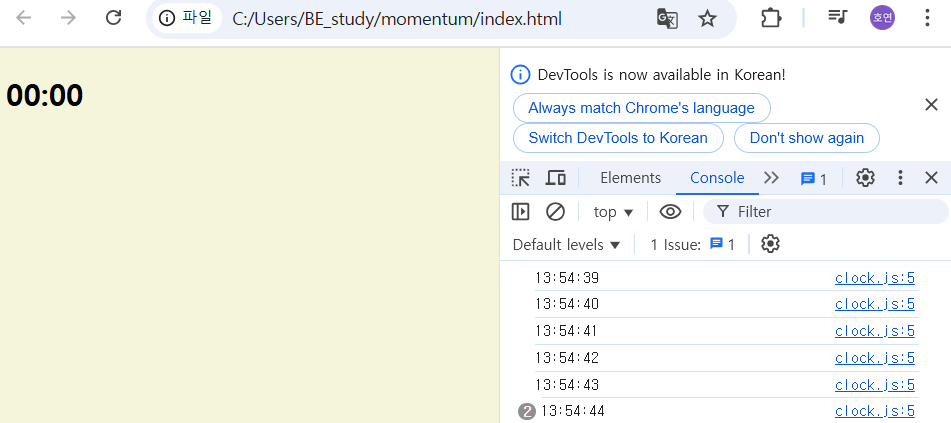
실행 결과
→ 이제 console에 출력된 시간을 페이지에 텍스트로 보이도록 해보자!
const clock = document.querySelector("h2#clock");

function getClock() {
    const date = new Date();
    clock.innerText = `${date.getHours()}:${date.getMinutes()}:${date.getSeconds()}`;
}

getClock();
setInterval(getClock, 1000);
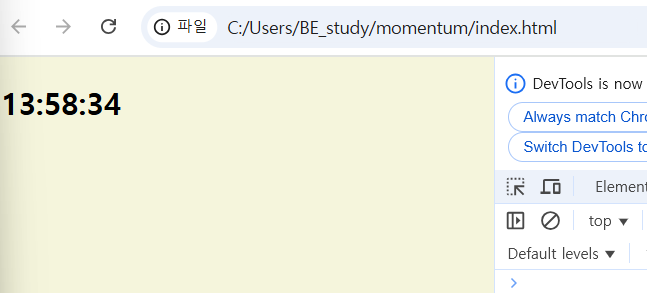
실행결과
PadStart
: 문자열의 시작 부분, 즉 앞부분에 완충 문자열을 채워주는 메서드
const clock = document.querySelector("h2#clock");

function getClock() {
    const date = new Date();
    const hours = String(date.getHours()).padStart(2, "0");
    const minutes = String(date.getMinutes()).padStart(2, "0");
    const seconds = String(date.getSeconds()).padStart(2, "0");
    clock.innerText = `${hours}:${minutes}:${seconds}`;
}

getClock();
setInterval(getClock, 1000);
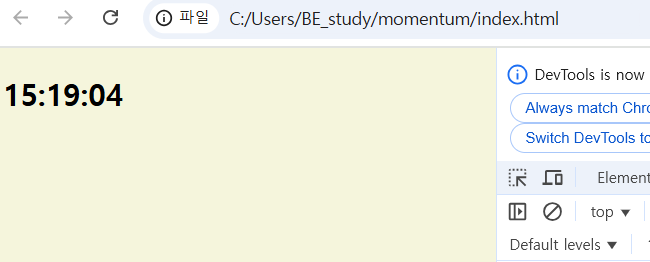
돌아가기: 2024 하반기 Python Coding Study